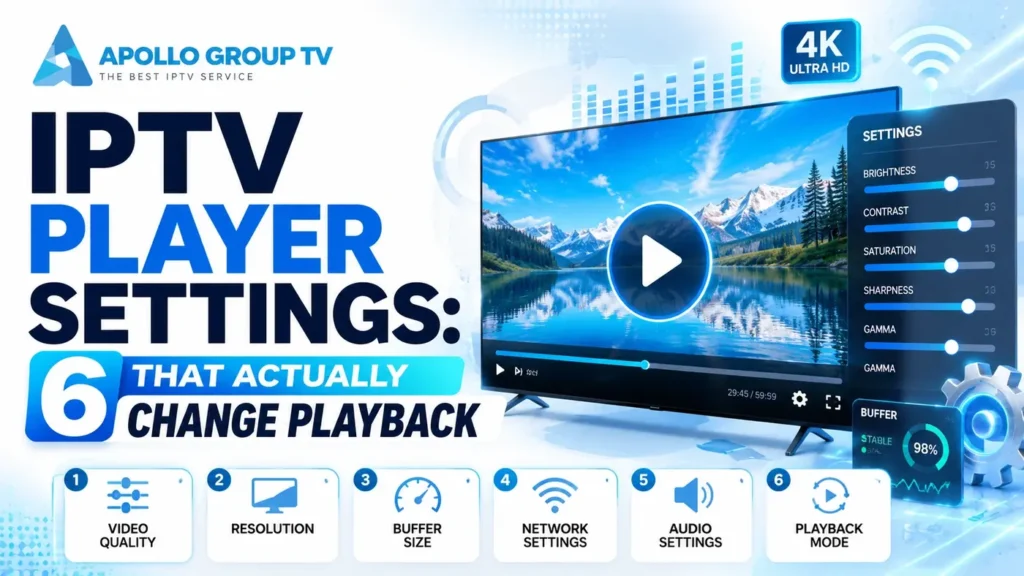
Open the settings menu and there are thirty options, most of them named in a way that gives no clue what they do. So people either change nothing, or change everything and end up worse off than when they started.
Six of them account for almost every difference you can make. The rest of the IPTV player settings are either cosmetic or safe to leave at their defaults, and knowing which six saves an evening of guesswork.
Six Settings, One Job Each
Each of these does one specific thing. If your problem is not on this list, no amount of adjusting IPTV player settings will solve it, which is worth knowing before you start.
The last of the six is worth enabling immediately and then forgetting. Without it, a two-second interruption leaves you on a frozen frame until you press something; with it, the player retries on its own.
The important oneDecoding: Hardware, Software, or Auto
This is the setting with the largest effect, and the one most likely to break something if set wrongly.
Hardware decoding
Passes the work to a dedicated video chip. Far more efficient, which means less heat, lower power use and smoother playback of high resolutions. It is the right default on almost every modern device.
The limitation is coverage: hardware decoders support a fixed set of formats, and anything outside that set will either fail or fall back automatically. VideoLAN's documentation on GPU decoding illustrates the point well, listing exactly which codecs are covered on which platforms.
Use when: playback is smooth, and especially on 4K or on any device that gets warm.
Software decoding
The general processor does the work instead. Slower and hungrier, but it handles any format the player understands rather than only the ones the chip supports.
Use when: a specific channel produces a black screen or audio without picture while others are fine.
Automatic
The player chooses per stream, using hardware where it can and falling back where it cannot. Sensible in principle and occasionally indecisive in practice, switching mid-stream in a way that produces a visible hitch.
Use when: you watch a wide mix of channels and do not want to think about it.
The diagnostic worth remembering: if one channel misbehaves while everything else is fine, try switching decoding mode before anything else. That single change resolves most format-specific failures.
A genuine trade-offBuffer Size: The Trade You Are Making
Buffer is the amount of video held in reserve. Every player has a default, and moving it in either direction costs you something.
What changes as you move it
There is no correct value. There is only which of those two annoyances you would rather have.
Two practical rules. If your connection is stable and you browse channels a lot, keep the buffer small and enjoy fast switching. If playback stutters briefly and irregularly, raise it in small steps and test between each one.
What a larger buffer cannot do is compensate for a connection that is genuinely short of bandwidth. It smooths over brief interruptions, not sustained shortfall, and raising it repeatedly in the hope of fixing constant stuttering will only make channel changes painful. If interruptions are frequent rather than occasional, our guide to jitter and packet loss covers how to measure what is actually arriving.
Picture problemsAspect Ratio, Deinterlacing and Scaling
Aspect ratio, when people look too wide or too tall
Default is usually the right choice, since it respects what the stream declares. Set it manually only when a specific channel is consistently distorted, and set it back afterward: a fixed ratio applied globally will distort every other channel that uses a different shape.
The clearest test is a person's face. Faces make distortion obvious in a way that scenery does not, which is why stretched picture often goes unnoticed until someone appears on screen.
Deinterlacing, when fast motion shows horizontal combing
Some broadcast sources are interlaced, meaning each frame is transmitted as two halves. On a modern screen this produces fine horizontal lines during movement, most visible during sports and camera pans.
Setting deinterlacing to automatic handles it without affecting progressive channels. Forcing it on globally costs processing effort on content that does not need it, which matters on weaker devices.
Scaling, and why sharper is not always better
Scaling controls how a lower-resolution stream is enlarged to fill your screen. Aggressive sharpening settings look impressive on a still image and exaggerate compression artifacts during motion, which is the opposite of what you want on live content.
Change one setting at a time and watch for a full minute. Several of these interact, and a change that looks like an improvement on a static shot can be worse the moment anything moves.
Match the Setting to the Symptom
Start here rather than reading the whole menu. This is the shortest route from a symptom to the one of the IPTV player settings responsible for it, and if your symptom is not listed, it probably is not an app problem at all.
| What you see | Setting to try | What to expect |
|---|---|---|
| One channel black, audio fine | Switch decoding to software | Usually immediate; that format is not hardware supported |
| Brief stutters every few minutes | Raise buffer in small steps | Fewer interruptions, slower channel changes |
| Channel changes take several seconds | Lower buffer | Faster switching, less tolerance for interruption |
| People look stretched or squashed | Aspect ratio back to default | Correct on that channel and on all others |
| Horizontal lines during movement | Deinterlacing to automatic | Clean motion without cost on other channels |
| Wrong audio language on many channels | Set a default audio language | Correct track chosen wherever it exists |
| Everything stutters constantly | None of these | The cause is the connection, not the app |
The last row is the one worth internalizing. Constant degradation across every channel is not something app settings can address.
Audio and subtitle behavior has its own set of causes, several of which look like settings problems and are not. Our guide to subtitles and audio tracks covers which of those you can fix and which are decided upstream.
The way backWhen You've Changed Too Much
At some point most people end up with a player that behaves worse than it did originally and no memory of what they altered. Getting back is easier if you plan for it.
Before changing anything, photograph the settings screens. It takes fifteen seconds and gives you an exact record, which written notes rarely match because option names are easy to transcribe slightly wrong.
If it is already too late, work backward through the six settings on this page rather than resetting the app. Return decoding to automatic, buffer to its default, aspect ratio to default and deinterlacing to automatic. Those four cover almost everything that causes trouble, and restoring them individually preserves your favorites and layout.
One habit prevents most of this entirely: change one thing, use it for an evening, then decide. People end up lost because they altered six options in ten minutes and never established which one helped. A single change per session is slower and it is the only approach that produces a configuration you understand.
Keep a full reset as the last resort, because it clears channel organization and preferences along with the settings. Where a player offers a settings backup, exporting one after a good configuration is worth the minute it takes. Our overview of IPTV app features covers what else is worth setting up once and preserving. apollo tv service plans are set out in full if you are still deciding which service to run.
Frequently Asked Questions
Do IPTV player settings affect how much data I use?
Only indirectly. Buffer size and decoding do not change how much video arrives. A resolution or quality setting does, since it determines which version of the stream is requested.
Should I copy settings from one device to another?
Not blindly. Decoding support differs by hardware, so a configuration that works on a modern television can fail on an older streaming stick. Start from defaults on each device and adjust only what needs adjusting.
Why did my settings reset after an update?
Some updates clear stored preferences, particularly major version changes. This is the practical argument for photographing the screens beforehand, since recreating a good configuration from memory is harder than it sounds.
Is there a best buffer value?
No, because it depends on your connection and how you watch. Someone on a stable wired connection who browses constantly wants a small buffer; someone on marginal wireless who watches one channel all evening wants a larger one.