The picture arrives on the television, and it is noticeably softer than the same channel looked on the phone. The audio is half a second behind. Twenty minutes later the phone is warm and the battery has dropped by a fifth.
None of that means the setup failed. It means you are mirroring rather than casting, and the two are different enough that treating them as one word explains almost every complaint about how to cast IPTV to TV without losing quality.
Two Different Things Called Casting
Both put your phone's content on the television. They take completely different routes to get there.
The phone hands over a reference and steps back. The television connects to the source directly and decodes at its own resolution.
Quality matches what the television could achieve on its own. The phone can be locked, used for something else, or taken out of the room.
How to tell: playback continues when you lock the phone.
The phone does all the work and sends a live copy of its display. The television is only a monitor.
Quality is capped by the phone's screen and by a second round of compression. Battery drains fast and the device heats up.
How to tell: the TV shows your notifications, and locking the phone stops it.
Google Cast and AirPlay both support either mode depending on what the app implements. The button often looks identical, which is why people rarely know which one they are using.
The distinction matters here more than with most content. Live channels are already sensitive to delay, so adding a re-encoding step and a second wireless hop compounds problems that a recorded video would absorb without complaint.
Where the quality goesWhy It Often Looks Worse
Four things degrade the picture, and all four apply to mirroring while only the last applies to true casting.
Point three explains why casting frequently works fine alone and falls apart when someone else in the house starts watching. Two trips over the same wireless network consume roughly twice the airtime of one, which is the same arithmetic that makes it hard to watch two channels at once.
Before you give upFive Checks Before You Blame the App
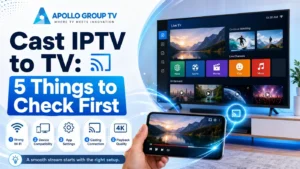
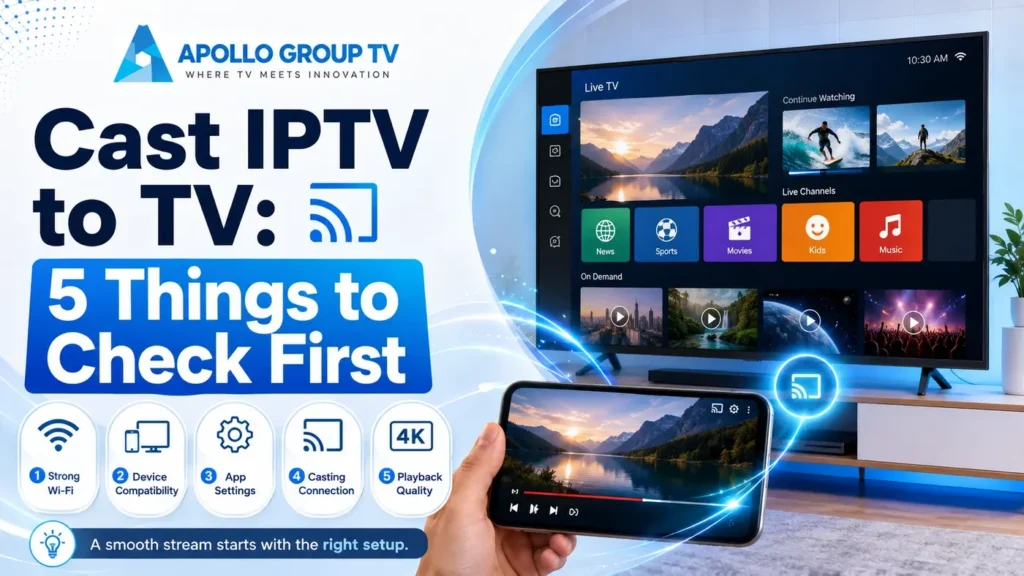
Most failed attempts to cast IPTV to TV come down to one of these, and each takes under a minute to rule out.
- Both devices on the same network Casting works within one local network. A phone on cellular data, or on a guest network the television cannot see, will not find the TV at all. This is the most common cause of a device simply not appearing.
- Both on the same wireless band Some routers isolate 2.4 GHz and 5 GHz clients from each other, which makes them invisible to one another even though both are online. Putting both devices on the same band resolves it.
- The phone is not going to sleep With mirroring, the phone must stay awake and the app in the foreground. A screen timeout will end the session, which people usually read as a crash.
- The television is on the right input A separate casting dongle needs its HDMI input selected. Obvious, and still the answer often enough to be worth checking before anything else.
- The player actually supports casting Many IPTV players implement no casting at all, in which case the system-level mirroring is your only route and the quality limits above apply in full.
If the television never appears in the list, it is almost always check one or two. Network isolation and band separation account for the large majority of discovery failures, and neither produces a useful error message.
Test which mode you are actually in
Two seconds settle it. Start playback on the television, then lock the phone. If the picture continues, you have true casting and the quality limits above mostly do not apply. If it stops or freezes, you are mirroring.
A second confirmation: watch the television while a notification arrives on the phone. Mirroring puts the banner on the big screen; true casting does not, because the television is showing the stream rather than your display.
Knowing which one you have changes what is worth trying. Mirroring problems are usually solved by improving the wireless link or lowering quality, while true casting problems are almost always network discovery issues rather than quality ones.
The honest answerWhen Installing the App on the TV Is Better
For most households, most of the time, the better answer is not to cast at all. Running the player on the television directly removes every limitation described above at once.
The television connects to the source itself, decodes at its native resolution, and uses one network trip instead of two. Your phone stops being part of the chain, so it can leave the room, run out of battery, or take a call without interrupting anything. Nothing is re-encoded, so the picture is as good as the channel allows.
It also changes what the remote does. Casting means controlling television playback through a phone, which is worse than a remote for anything except typing. Once the app is on the television, the normal remote works and the phone goes back in your pocket.
The practical question is what your television can run. Built-in smart TV platforms differ considerably in which apps they offer, and an inexpensive streaming device often provides a better selection than the set itself. Our comparison of whether to use a smart TV app or a streaming device covers that decision in detail.
Genuine use casesWhen Casting Is Genuinely the Right Call
Three situations where the decision to cast IPTV to TV is the sensible answer rather than a compromise.
Travel and temporary screens
A hotel television you cannot install anything on, a rental, or a screen belonging to someone else. Casting requires nothing permanent and leaves no account signed in when you leave, which is the more important half of that sentence.
Televisions that accept no apps
Older sets and commercial displays with no app platform at all. Here mirroring from a phone is a genuine capability rather than a downgrade, since the alternative is not watching.
Showing something briefly
A short clip or a specific moment somebody wants to see on the big screen. Setting up an app for two minutes of viewing makes no sense, and the quality loss is irrelevant at that length.
Outside those three, casting is usually solving a problem that installing the app would solve better. MakeUseOf's explanation of how screencasting and mirroring differ covers the underlying mechanics if you want to confirm which one your setup is using.
If you do cast regularly, the settings that reduce the damage are worth knowing: keep both devices on 5 GHz, close other apps on the phone, and lower the channel quality before starting rather than after it stutters. Our overview of how to use an IPTV app covers the wider set of features worth configuring once. apollo group television plans are set out in full if you are still deciding which service to use.
Frequently Asked Questions
Does it cost extra data to cast IPTV to TV?
Not against your internet allowance, since the stream is downloaded once regardless. Mirroring does consume additional wireless capacity inside your home, which affects other devices on the same network even though it does not affect your bill.
Can I use the phone for other things while casting?
With true casting, yes, and that is the clearest way to identify which mode you are in. With mirroring, no, because whatever you do on the phone appears on the television.
Why is the audio out of sync?
Accumulated delay through the extra encoding and transmission stages. Some televisions offer an audio delay adjustment that compensates, but the underlying lag belongs to the method rather than to any setting in the app.
Does casting count as an extra connection on my account?
Generally not with mirroring, since only the phone is connected to the service. True casting can count as one, because the television opens its own connection to the source rather than receiving a copy from the phone.