
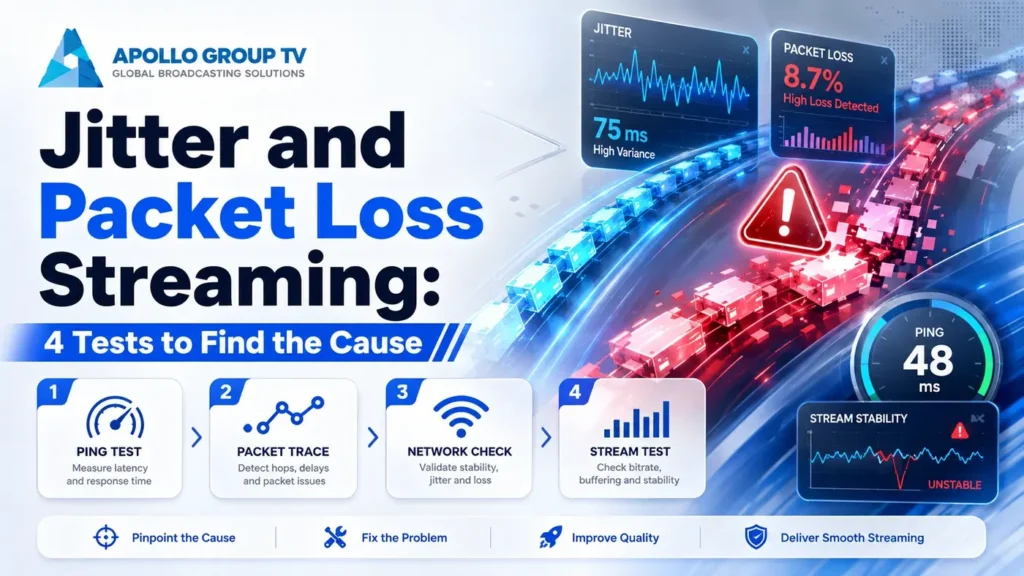
Three hundred megabits, a wired television, and the picture still stops for half a second every couple of minutes. This is the point where most people conclude the service is at fault, because everything they know how to measure says the connection is fine.
The measurement is the problem. Speed tests report an average, and jitter and packet loss streaming failures live in the gaps that an average smooths over. This page covers what those two things actually are, four tests that expose them, and which fix belongs to which cause.
Why a Fast Connection Still Freezes
Bandwidth, latency, jitter and loss are four separate measurements, and a connection can score brilliantly on one while failing on another. Only the first appears on a typical speed test result.
Here is why the speed test misses it. A test transfers as much as it can for about ten seconds and divides by the time. A connection that stalls completely for two seconds, then races to catch up, produces an excellent average. Video does not average: those two seconds are two seconds of frozen picture.
Live channels are the most exposed to this. On-demand playback buffers minutes ahead, so it absorbs a gap without you noticing. A live stream holds only a few seconds in hand, which is why the same connection can play a movie flawlessly and break during a game. If your complaint is a soft or blocky image rather than interruption, that is a different question entirely and our explainer on picture quality covers it.
Match the symptomWhat Each One Looks Like on Screen
Before running any test, narrow the field by what you actually see. With jitter and packet loss streaming faults the visible pattern is usually enough to point at the cause.
Four Tests, From Easiest to Most Precise
These use tools already installed on your computer. Run them from a machine connected the same way as your television, ideally while a channel is actually playing, since a quiet network hides the problem you are chasing.
A continuous ping to measure loss
ping -n 100 1.1.1.1 (Windows) ping -c 100 1.1.1.1 (macOS / Linux)This sends a hundred small packets and reports how many came back. The summary line at the end gives you the loss percentage and the minimum, average and maximum round trip. That spread between minimum and maximum is your jitter in its crudest form: a gap of 15 ms is healthy, a gap of 200 ms is not.
The same test during a busy stream
Repeat test one twice: once with nothing playing, then again with a live channel running in 4K. A connection that is clean when idle and loses packets under load is telling you the bottleneck is capacity or wireless contention, not a fault.
If the loss appears only in the second run, our guide to internet speed for IPTV covers how to work out whether you have enough headroom for what your household actually watches.
Find the hop where loss begins
pathping 1.1.1.1 (Windows) mtr 1.1.1.1 (macOS / Linux)This is the test that tells you whose problem it is. Both tools list every hop between you and the destination with the loss recorded at each. Loss appearing at hop one means your own router or wireless link. Loss starting at hop two or three points at your provider's local network. Loss that only shows on the final hop is usually harmless, because many servers deprioritise these replies deliberately.
The key reading is where loss begins and continues to the end. A single hop showing loss while later hops are clean is a measurement artefact, not a fault.
Wired against wireless
Run test one over wireless, then plug in a cable and run it again in the same session. If loss and jitter disappear on the cable, the cause is inside your house and no provider will be able to help. If both results are identical, the fault is beyond your router and you now have evidence worth sending.
Test at the worst time, not the most convenient one. Results taken at two in the afternoon on a quiet network will look perfect and prove nothing. Run everything again between 8pm and 10pm to catch the conditions that are actually breaking your viewing.
Reading the Numbers
These are the working thresholds for live video, which is stricter than browsing and gentler than competitive gaming.
| Measurement | Healthy | Marginal | Broken |
|---|---|---|---|
| Packet loss | 0% | Under 0.5% | Above 1% |
| Jitter | Under 10 ms | 10–30 ms | Above 30 ms |
| Ping spread (min to max) | Under 20 ms | 20–80 ms | Above 100 ms |
The figure that surprises people is packet loss. One percent sounds trivial, and for a file download it is: the missing pieces are simply requested again. Live video has no time for that conversation, so one percent loss can mean an interruption every few minutes. Kentik's reference on how these three metrics interact is worth reading if you want the mechanics behind the thresholds.
Match fix to causeFixes by Cause
Test three told you roughly where the problem sits. These are the four causes that account for almost all of it.
Loss at hop one, wireless only
Interference or distance. Move the device to 5 GHz, set a fixed channel rather than automatic, and reduce how many devices share the band. If a cable is possible, it removes the cause entirely rather than reducing it.
Loss at hop one, wired too
Physical. A damaged cable, a poorly seated connector or a failing router port. Swap the cable first because it costs nothing, then try a different port on the router. Coaxial connections deserve a check at the wall socket as well, since a loose fitting produces exactly this pattern.
Loss starting at hop two or three, evenings only
A saturated segment on your provider's local network. Nothing in your house will fix it, but documented readings do get nodes upgraded, and the escalation approach in our guide to IPTV home network setup applies here too.
Network clean, playback still interrupted
The device. Underpowered players drop frames when decoding high bitrate content and the result looks identical to network loss. Test the same channel on a different device: if only one struggles, you have found it.
Working through jitter and packet loss streaming problems in this order costs an evening and usually ends the guessing permanently, because each test eliminates a whole category rather than a single possibility. See more here about what each plan includes if you are still choosing a service to run on the connection you have just measured.
Frequently Asked Questions
Can I fix jitter and packet loss streaming issues myself?
It depends entirely on where the tests locate them. Problems at the first hop are yours and usually solvable with a cable, a band change or a replacement lead. Anything beyond your router belongs to your provider, and the measurements are what turn that into a productive conversation.
Why does my speed test never show any of this?
Because it reports a ten-second average and these are momentary events. Some tests now include a jitter figure, which helps, but none of them measure sustained loss over minutes, which is what live video actually experiences.
Does a VPN reduce packet loss?
Rarely, and it can make matters worse. A VPN adds a hop and encryption overhead, so an already unstable connection often degrades further. It occasionally helps if the loss occurs on a specific route that the VPN happens to bypass, which you can only establish by testing.
Is some packet loss normal?
Brief loss on the final hop of a trace is normal and harmless, because many servers give those replies low priority. Sustained loss along the whole path is not normal at any level, and anything above one percent will be visible on live channels.