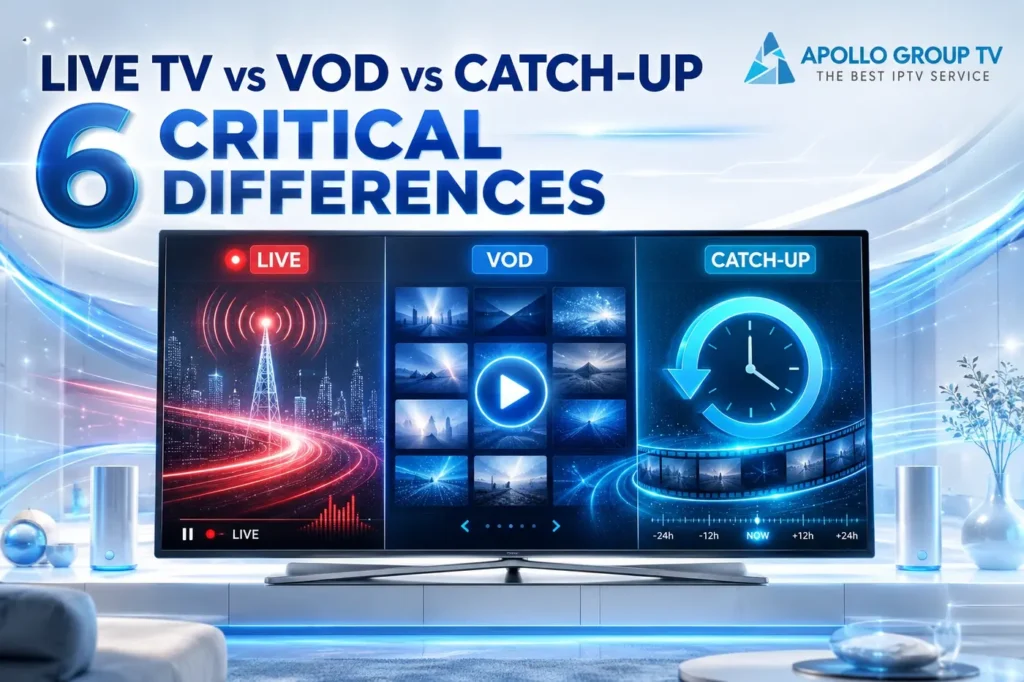
Live TV vs VOD vs catch-up is mainly a question of time and control. Live TV follows a schedule, VOD starts when you choose an item, and catch-up lets you revisit selected scheduled content during a service-defined replay window.
The three modes can exist inside the same service and even point to related content. Their labels describe how a viewing session starts and how long the item remains accessible; they do not guarantee identical controls in every app. This comparison focuses on viewing behavior, not subscription terms, catalog size or app-specific menu paths. Those details can change without altering the basic distinction between a scheduled feed, a requested library asset and an eligible replay.
Live TV
A continuous scheduled feed. You enter at the point currently being transmitted.
VOD
A selectable library asset. Playback begins when you request that specific item.
Catch-Up
A replay of selected scheduled content, available only when the service provides it.
Difference 1: Fixed Schedules vs Viewer-Chosen Start Times
Live television is linear. A scheduled feed continues whether you open it or not, so joining at 8:17 means seeing whatever is being transmitted at 8:17. The schedule determines what is on now and what comes next.
VOD reverses that relationship. You select an available item, send a request, and playback starts for your session. Another viewer can choose the same item later without needing to enter at the same point.
Catch-up sits between them. The content first belonged to a schedule, but an eligible replay can later be started on demand. That is why catch-up feels like VOD during playback even though its origin is a past live-program slot.
A simple time test
Imagine opening the service at 8:17. A live selection takes you to the feed's 8:17 position. A VOD selection begins the asset you chose, normally from its opening point. A catch-up selection can begin an eligible item that appeared earlier in the schedule. The content may look similar on screen, but the clock relationship is different in all three cases. For the wider picture, see how IPTV streams reach a device.
Difference 2: Live Feeds, Stored Assets and Replay Copies
A live feed is assembled and delivered continuously. Your player receives the current part of that feed, keeps a limited working buffer, and presents it close to the scheduled moment. The buffer supports playback; it does not automatically turn the complete broadcast into a permanent library item.
A VOD title is prepared as an on-demand asset before you select it. The delivery system can then serve the requested portions as playback moves forward. Apple's HTTP Live Streaming overview is one technical example showing that the same web-based streaming family can deliver both live and on-demand media.
Catch-up requires an eligible scheduled item to remain accessible as a replay. The exact recording, packaging and retention process belongs to the service operating that feature. A catch-up label therefore describes the viewing option, not one universal storage architecture.
A playback buffer is not a saved catalog
A player may temporarily hold a small amount of incoming video to keep playback moving smoothly. That temporary buffer should not be confused with a VOD library or a catch-up archive. Those viewing modes require an addressable asset that the service can offer after the original transmission point. The viewer sees a play button in each case, but the server-side source behind that button is different.
Difference 3: Joining Now vs Starting from the Beginning
Opening a standard live feed normally places you at its current point. If a scheduled item began 20 minutes ago, the viewer joins 20 minutes into it. Pause, restart and time-shift controls are separate capabilities; their presence should never be assumed from the words "live TV" alone.
VOD normally opens at the beginning unless the player has saved a previous position for that item. Catch-up also gives the viewer a selectable replay, so an eligible program can usually be opened from its start rather than from the current live moment.
This distinction helps diagnose a common misunderstanding. Seeing a program listed in the guide does not guarantee a "start over" button. The schedule entry, the live stream and the replay asset are separate pieces of the experience, and the service must connect them for catch-up to work.
Restart is a feature, not a definition
If a live item offers "restart," "watch from beginning" or a similar control, the service is adding access to earlier material. That is more control than a basic linear feed provides. If the control is absent, leaving the live area and finding an eligible replay may be necessary. The precise label and location can change, so judge the visible control rather than the category name alone.
Difference 4: Permanent Catalogs vs Limited Catch-Up Windows
Live availability follows the active feed. Once the schedule moves on, the earlier segment is no longer the current live moment. It may become replayable only if the service has separately enabled a restart or catch-up option.
VOD availability follows the catalog. An item can usually be selected while it remains listed, but "on demand" does not mean permanently available. Libraries can change, and a saved favorite is not a guarantee that the underlying asset will remain accessible.
Catch-up is the most time-sensitive of the selectable modes. Eligible content is offered during a replay window defined by the service, and that window can vary. Check the visible replay label or availability message instead of assuming a fixed number of hours or days.
Read availability as a current status
"Scheduled" means an item is associated with a future or current time slot. "Available on demand" means an asset can be requested now while it remains in the library. "Replay available" means a past scheduled item has an active catch-up path. These statuses can change independently, which explains why a guide entry may remain visible after its replay is no longer selectable.
Difference 5: EPG Grids, VOD Libraries and Replay Navigation
Live TV is commonly organized around an IPTV program guide: channel rows, time slots and a marker for what is on now. VOD is normally organized as a searchable library with categories and item details.
Catch-up may appear inside a past guide slot, a replay shelf or another dedicated area. The layout can vary by app and service version. A past title in the guide is only schedule data; it becomes playable catch-up when that entry is connected to an available replay asset. Navigation style therefore tells you how a mode is presented, not whether the underlying content is currently accessible.
Difference 6: Live TV vs VOD vs Catch-Up Control
Live TV gives the least control over timing because the schedule keeps moving. It is useful when the value comes from watching at the same moment as the feed. Extra controls such as pause or restart depend on the actual service and player configuration.
VOD gives the clearest start-time control. You choose the item and decide when playback begins while it remains available. Catch-up provides similar convenience for eligible scheduled content, but its selection and availability window are usually narrower.
The best mode therefore depends on the moment, not on a universal winner. For service information and the current viewing options presented by Apollo TV, use the main website rather than assuming every feature applies to every item.
Control has more than one layer
Start-time control is only the first layer. Seeking, pausing, resuming and remembering a previous position can depend on the asset, service and player. VOD often exposes more of those controls because it is requested as an individual item. Catch-up can behave similarly during playback, yet its replay window still limits access. Live TV may offer extra controls, but they should be treated as added features rather than universal live-feed behavior.
Ask who controls the start time. That single question separates live TV vs VOD vs catch-up quickly: the schedule controls live viewing, the viewer starts VOD, and catch-up lets the viewer restart selected scheduled content while its replay window remains open. It also prevents confusing a visible schedule entry with an accessible replay.