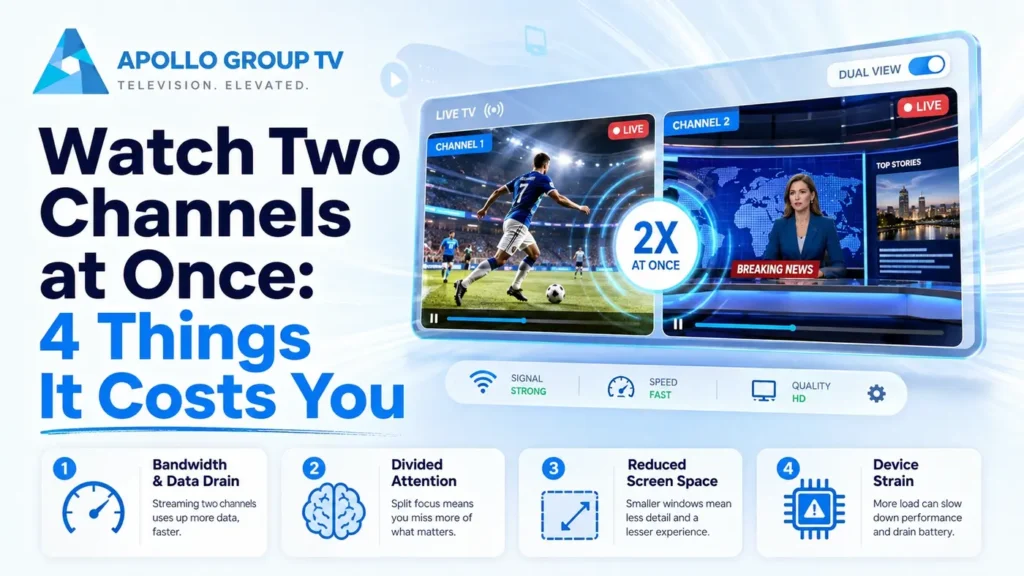
Two games on at the same time, and your player has a multiview button. You press it, both panes appear, and within a few minutes one of them is stuttering while the other looks fine.
Nothing is broken. The ability to watch two channels at once is not a display feature; it is a request to run two complete streams simultaneously, and most setups are sized for one. Knowing what it costs tells you whether yours can do it and what to change if it cannot.
It's Two Streams, Not One Split Screen
A split screen sounds like one picture divided in half. What actually happens is that your device opens a second connection, downloads a second stream, and decodes both at the same time on the same hardware.
Everything else on this page follows from that. Bandwidth requirements do not stay the same because the panes are smaller, because the stream arriving is the full channel regardless of how large the pane is on screen. Nor does the decoding effort halve, since two video streams are being processed rather than one.
The practical test is simple. If a single channel already sits near the limit of what your connection or device can handle, adding a second will not degrade gracefully. One pane will fail while the other continues, which is exactly the behavior people describe as a bug.
What it takesThe Four Costs
Both streams arrive in full. Two Full HD channels need roughly what two televisions would need, not what one does.
Means: around 20 Mbps for two 1080p panes, more for anything in 4K.
The device decodes both streams concurrently. Many streaming sticks have one hardware decoder, so the second pane falls back to software.
Means: heat, stutter and a much shorter battery life on portable devices.
Only one pane can be audible at a time. Every player makes you choose, and switching mid-broadcast is usually a manual action.
Means: the second pane is effectively a moving picture you glance at.
Each pane occupies roughly half the display, so detail shrinks accordingly. Scoreboards, subtitles and small text become hard to read.
Means: comfortable on a large television, frustrating on anything under about 50 inches.
The audio limitation is the one that changes how people actually use the feature. In practice multiview works best when one pane is the thing you are watching and the other is something you are monitoring, rather than two events you care about equally.
Before you turn it onFour Checks Before You Try
Each of these takes a minute and predicts whether you will be able to watch two channels at once on your setup without a pane failing.
- Confirm your connection has headroom Run a speed test at the device and compare it against double what one channel needs. Two 1080p panes want around 20 Mbps of genuine headroom, not the figure on your plan. If it fails: our guide to internet speed for IPTV covers how to work out what your household actually has available.
- Check whether the device can decode two streams Older streaming sticks and budget boxes frequently cannot. There is no specification to look up, so the practical test is trying it and watching whether the second pane stutters while the first stays clean. If it fails: the limit is hardware, and no setting recovers it.
- Use a wired connection if one is available Two simultaneous streams over wireless double the exposure to interference and contention. This is the single change most likely to turn an unstable multiview into a stable one. If it fails: wireless may still work at lower resolutions.
- Cap the resolution before you start Two panes at Full HD are far more achievable than two at 4K, and at half screen size the difference is barely visible. Setting this in advance avoids the player discovering the limit for you mid-broadcast. If it fails: drop one pane to 720p and keep the other at 1080p.
| Combination | Rough bandwidth | Realistic on |
|---|---|---|
| Two SD panes | 8 Mbps | Almost any setup |
| Two 1080p panes | 20 Mbps | Most modern devices, wired |
| One 4K, one 1080p | 35 Mbps | Capable hardware only |
| Two 4K panes | 50 Mbps or more | Rarely worth attempting |
Planning figures with headroom included. Live sports sit at the top of each band, which is unfortunate given that live sports is the main reason anyone uses multiview.
Getting it rightMaking It Actually Watchable
Decide which pane is primary before you start
Give the primary pane the audio and the higher resolution, and treat the second as a monitor. Trying to give both equal weight produces a worse experience than either channel on its own, and the compromise satisfies nobody.
Set quality per pane if your player allows it
Some players expose a resolution setting for each pane separately. Where they do, dropping the secondary one to 720p frees a meaningful amount of bandwidth and decoding capacity for almost no perceptible loss at half screen size. Our guide to IPTV player settings covers where quality and decoding options usually sit.
Expect the panes to drift apart in timing
Two streams start independently and buffer independently, so they will not be perfectly synchronized. A gap of a few seconds between panes is normal, and it is why a notification on your phone sometimes reveals something before you see it happen.
Watch the device temperature
Sustained decoding of two streams heats small devices considerably, and thermal throttling produces stuttering that looks exactly like a network problem. If multiview works for twenty minutes and then degrades, heat is the likely cause rather than your connection.
Streaming sticks plugged directly into the back of a television are the worst affected, because they sit in trapped air behind a panel that is itself warm. A short HDMI extension that moves the stick clear of the set costs very little and frequently resolves the problem completely.
Close everything else on the device
Background apps compete for the same processor and memory that the second stream needs. On a device that manages one channel comfortably but struggles with two, clearing whatever else is running is worth trying before concluding the hardware is insufficient.
This applies particularly to devices that double as something else. A games console or a tablet with a dozen apps suspended has considerably less available capacity than the specification suggests, and the shortfall shows up exactly when you ask it to watch two channels at once.
Test with the actual channels beforehand. Two studio broadcasts behave very differently from two live events, which sit at the top of every bandwidth range. A successful test on quiet content proves less than it appears to.
When Multiview Isn't the Answer
Multiview is not the only way to follow two things, and the ability to watch two channels at once is frequently not the best route to it.
A second device
A tablet beside you running the second channel gives each stream its own hardware, its own decoder and a usable screen size. It also lets a second person control it independently. Check how many simultaneous connections your plan allows before relying on this.
Picture-in-picture
A small floating window over a full-screen app, which suits monitoring rather than watching. Android's documentation on picture-in-picture mode notes that devices need sufficient processing capacity for it, the same constraint that limits multiview.
Fast channel switching
Underrated, and often the most practical answer. A well-organized favorites list makes switching nearly instant, uses one stream, and gives you a full screen for whichever event matters at that moment.
That last option is worth taking seriously before spending an evening on multiview settings. If switching between two channels takes four seconds, fixing that is easier than making two streams run reliably. Our overview of how to use an IPTV app covers the setup that makes switching fast. Learn more about what each plan includes if you are still deciding which service to use.
Frequently Asked Questions
Does watching two channels at once count as two connections?
Usually yes. Two streams from one account generally consume two of your allowed simultaneous connections, which matters in a household where other people are watching at the same time.
Can I hear both channels together?
No player mixes two live audio tracks, and it would be unlistenable if one did. You choose which pane is audible and switch when you want the other.
Why does one pane freeze while the other keeps playing?
Because they are independent streams competing for the same bandwidth and the same decoder. Whichever loses the contest fails first, which is why the problem affects one pane rather than both.
Is multiview available in every player?
No. It is one of the less commonly implemented features, and simpler players omit it entirely. If yours has no multiview option anywhere in the interface, the limitation is the app rather than your subscription.