
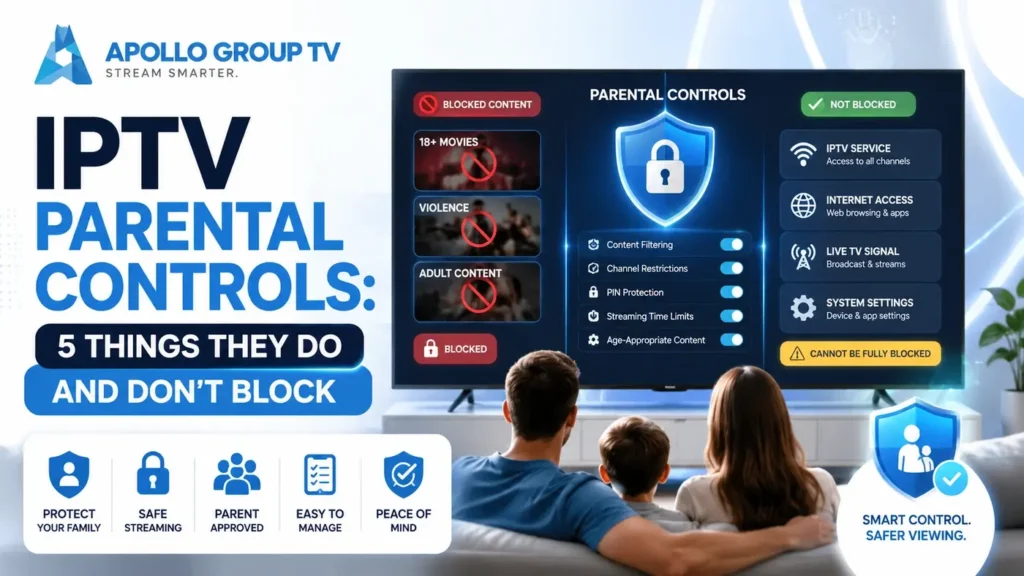
Most parents set a PIN, test that it asks for the code, and consider the job done. Then a seven-year-old scrolls past a row of thumbnails for something they should not be looking at, without ever entering a code.
Nothing failed. The setting worked exactly as designed. IPTV parental controls vary enormously in what they actually do, and the difference between hiding content and blocking it is the single thing worth understanding before you rely on them.
Hide or Block: Two Very Different Things
Every player takes one of two approaches, and the interface rarely tells you which. Both are described as parental controls.
Restricted channels are removed from the list, the guide and the search results entirely. As far as anyone browsing is concerned, they do not exist.
A child sees: nothing. No titles, no thumbnails, no locked entries to ask about.
Channels stay visible with their names and artwork intact. Selecting one prompts for a code, and playback does not start without it.
A child sees: every title and image, and knows exactly what is behind the lock.
For younger children, hiding is almost always the better choice. Blocking suits households where the point is a rule rather than a barrier, which is usually older children who already know the content exists.
Finding out which one your player uses takes a minute. Restrict a category, then browse as a child would: open the channel list, open the guide, and run a search for something in that category. If names or thumbnails appear anywhere, you have blocking rather than hiding.
What you can restrictThe Three Levels Players Offer
Not every player offers all three, and the levels available set the limit on how precise your IPTV parental controls can be.
Levels one and two combine well. Lock the categories that are never appropriate, then unlock specific channels within them that are. The result is closer to what you actually want than either level achieves alone, and our guide to how to organize IPTV channels covers building a child-friendly list alongside your own.
Making it stickSetting It Up So It Holds
Choose a code that is not guessable
Birth years, house numbers and repeated digits are the first things tried, and children are more observant about what you type than adults expect. Something unconnected to the household is worth the small effort of remembering.
Find out what the PIN actually protects
In some players the same code that unlocks a channel also opens the settings menu, which means anyone who learns it can switch the controls off entirely. Where a separate settings PIN is available, set a different one. This is the most consequential setting on this page and the least advertised.
Check what happens when the app updates
Updates occasionally reset stored preferences. Take thirty seconds after any update to confirm restrictions are still active, because a control that silently switched off looks identical to one that is working until someone tests it.
Repeat the setup on every device
Restrictions are stored per device in most players. A tablet, a second television and a phone each need their own configuration, and the one that gets forgotten is usually the one a child uses unsupervised.
Verify, do not assumeTest It the Way a Child Would
Setting a restriction and confirming it works are separate jobs, and only the second one tells you anything. Five minutes of deliberate testing catches almost every configuration mistake.
Sit down with the app as though you had never seen the settings. Open the channel list and scroll the whole way through, looking for anything restricted that still appears. Open the guide and do the same for the evening hours. Run a search for the name of a channel you locked. Then open the on-demand library and browse it as a separate area, because it frequently is one.
Finally, hand the device to the person it is configured for and watch what they do with it for two minutes. Children navigate differently from adults and routinely reach areas by routes that never occurred to whoever set the restrictions. It is the fastest way to find the gap you missed.
Know the limitsThe Gaps Worth Knowing About
These four catch out parents who have set everything up correctly. None of them is a fault; they are simply boundaries of what the feature covers.
The on-demand library is often separate
Restrictions applied to live channels do not always extend to the movie and series library, which is organized differently and may have its own controls or none.
Close it by: checking the on-demand section separately, as a child would see it.
Search can bypass the lock in some players
A restricted channel hidden from the list may still surface in search results, complete with its name. Whether it plays varies, but the title itself is often visible.
Close it by: searching for a restricted channel yourself after setting up.
A second device has none of your settings
Configuring the living room television does nothing for the tablet. This is the most common gap by a wide margin, precisely because the main setup felt complete.
Close it by: listing every device that can sign in, and doing each one.
Guide artwork stays visible under blocking
Where the player blocks rather than hides, program images and descriptions remain in the guide. The content cannot be played, but it can be seen and read.
Close it by: using category hiding instead, if your player supports it.
Working through these four takes about ten minutes and is the difference between controls you have set and controls you have verified. Our overview of IPTV app features covers how to tell whether a missing control belongs to the player, the service, or a setting that needs enabling.
Honest limitsControls Are One Layer, Not the Whole Answer
Technical restrictions work well for young children and progressively less well as children get older. A ten-year-old who wants to see something restricted will generally find a route: a friend's house, a phone, a device nobody thought to configure.
That is not an argument against setting them up. It is an argument for treating them as one layer among several rather than as a solution. The most useful thing they do for older children is make a household rule visible and consistent, which is a different job from making something impossible.
Common Sense Media, a nonprofit focused on children and media, makes a related point in its guide to parental controls: controls work better when children know they exist and understand why, rather than when they are hidden. Explaining the reasoning tends to produce fewer attempts to get around it than silent enforcement does.
Practically, that means reviewing what is restricted as children get older rather than setting it once and forgetting. Restrictions appropriate for a six-year-old become an irritant at eleven and a challenge at fourteen, and adjusting them deliberately keeps the conversation open. apollo tv group plans are set out in full if you are still deciding which service to set up for your household.
Frequently Asked Questions
Do IPTV parental controls work on every device?
The feature exists in most players, but settings are usually stored per device rather than on the account. Configuring one television leaves every other device unrestricted, which is why the device inventory matters more than the settings themselves.
What if my player has no parental controls at all?
Some simpler players offer none. The practical alternative is a device-level restriction, since phones, tablets and televisions all have their own controls for limiting which apps can be opened and when.
Can I set different restrictions for different children?
Only if your player supports separate profiles, which many do not. Where it does not, the usual approach is to set restrictions for the youngest viewer and supervise the older ones, since the alternative is changing settings constantly.
Do IPTV parental controls slow the app down?
No. Restrictions are applied to the channel list before anything plays, so there is no effect on picture quality or on how quickly a permitted channel opens.
I forgot the PIN. What now?
Recovery varies. Some players offer a reset through account settings, others require clearing the app data, which removes favorites and other configuration along with the code. Noting the PIN somewhere away from the television is worth doing when you set it.