Most people set up their subscription, watch one channel, and never touch anything else. The app then feels clumsy for months, and the assumption is that this is simply how it works.
It usually isn't. Learning how to use an IPTV app properly takes about twenty minutes spread over the first week, and the difference is the gap between scrolling through six hundred channels every night and pressing two buttons to reach what you want.
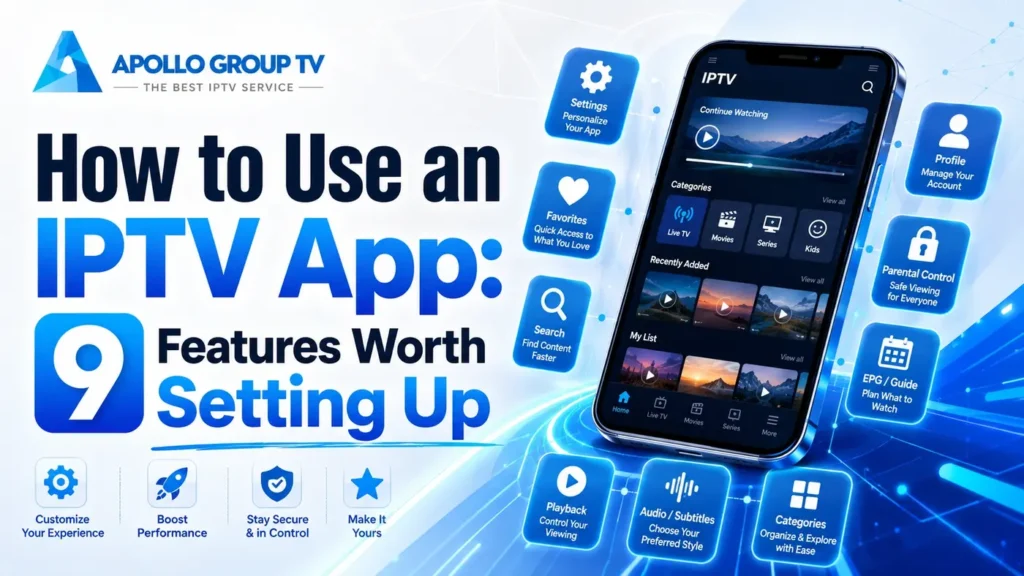
Nine features account for almost all of that difference. Here they are, in the order worth tackling them.
What Your Player Controls — and What It Doesn't
Before changing any setting, it helps to know which of three separate things you are actually adjusting. Almost every frustrating hour of troubleshooting comes from working on the wrong layer.
Keep that split in mind as you work through the features below. If something isn't behaving, identifying the layer first will save you far more time than trying settings at random.
A worked example makes the split obvious. Say one channel opens in the wrong language. That is the player, and a default audio setting fixes it permanently. Now say the same channel has no second language available at all: that is the service, and no setting will produce a track the stream does not carry. Finally, say the channel plays in the right language but stops every few minutes. That is the network, and nothing in this article touches it.
Three near-identical complaints, three different layers, three completely different responses. Working out which one you are looking at is the single most useful habit in learning how to use an IPTV app well.
Do these nowThe First Ten Minutes: Three Things to Set Up Now
These three pay for themselves immediately and you only do them once. If you do nothing else on this page, do these, because they are the settings that change daily use rather than solving occasional problems.
Build a favorites list and hide what you don't watch
A full channel list runs into the hundreds, and realistically you watch perhaps fifteen of them. Every player has a way to mark favorites, and most can hide entire categories you will never open.
Do this before anything else, because every other feature becomes faster once the list is short. Our guide to how to organize IPTV channels covers favorites, hiding categories and reordering in detail.
Takes: five minutes, saves a few seconds every single time you turn on the television.
Check the playback settings once
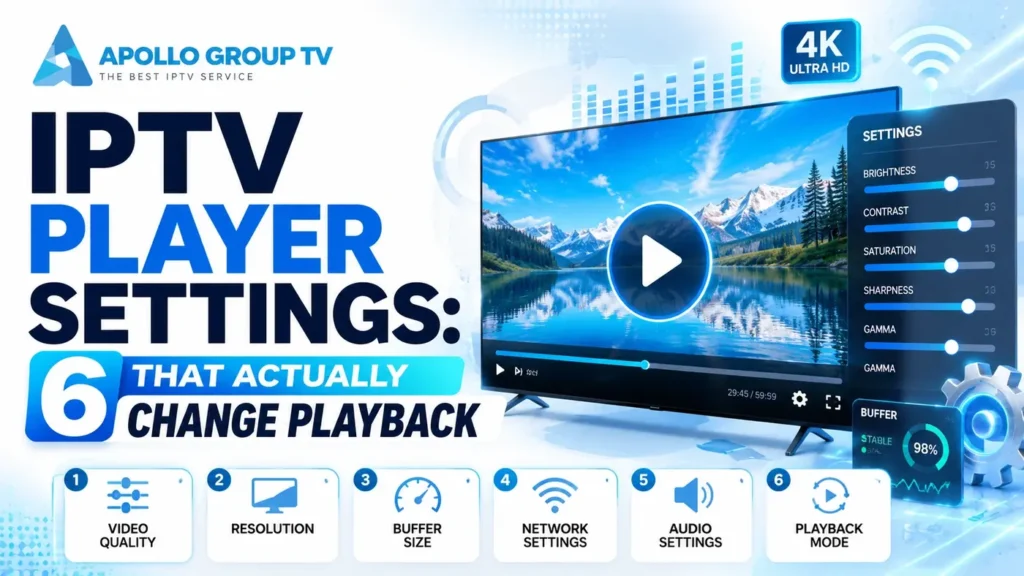
Two settings matter and the rest can stay as they are. Hardware decoding should be on if your device supports it, since it hands the work to dedicated silicon rather than the general processor. Buffer size controls how much video the player holds in reserve before starting.
Raising the buffer slightly makes playback more tolerant of brief interruptions at the cost of a longer wait when you change channels. Our walkthrough of IPTV player settings explains what each option does and which ones to leave alone.
Takes: three minutes, and it is the closest thing to a general playback improvement available in software.
Set your default audio language and subtitles
Players usually pick the first audio track in the stream rather than the one you want, which is why some channels open in an unexpected language. Setting a preferred language once means the player chooses correctly on every channel that offers it.
The same applies to subtitles, which can default to on, off or a specific language. Our guide to IPTV subtitles and audio tracks covers both, including what to do when a stream carries no alternative track at all.
Takes: two minutes, and removes a small irritation that otherwise repeats daily.
The First Week: What You'll Use Every Day
Three more features that quickly become part of normal viewing rather than something you look up.
Catch-up: watching something that already aired
Catch-up lets you go back to shows that have already been broadcast, without recording anything in advance. The archive window varies between channels and typically runs from one day to about a week.
The important detail is that this depends entirely on the service rather than your app. A channel with no archive shows nothing to go back to, however the player is configured. Our explanation of how catch-up TV works covers how far back the window usually reaches and why some channels have none.
Search, and why exact titles sometimes fail
Search behaves differently from what people expect. Most players match text within the item name as it appears in the library, which is often not the title you have in mind: punctuation, a subtitle, or a year in the name will all break an exact match.
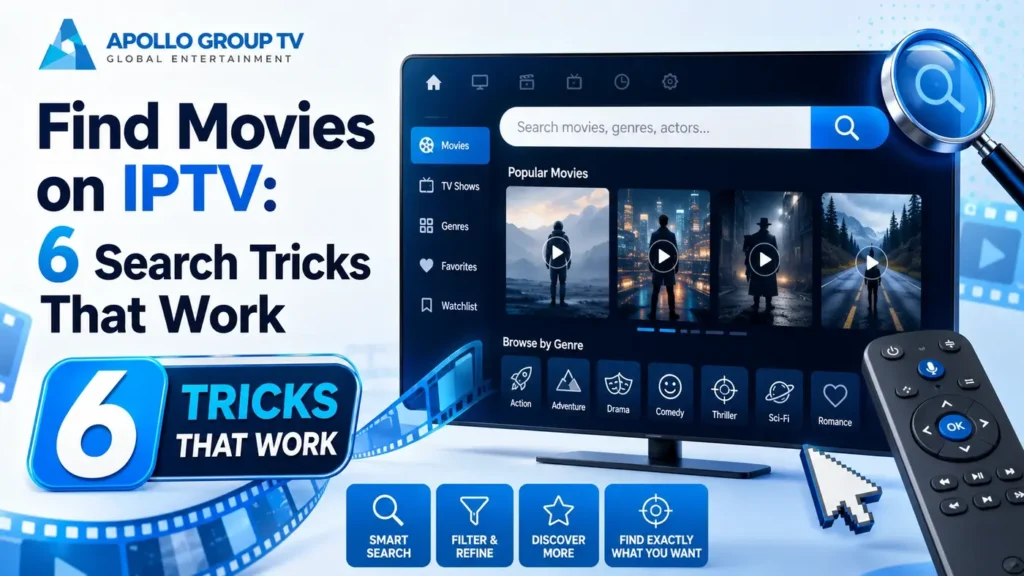
Searching a distinctive fragment rather than the full title works far more reliably. Our guide to how to find movies on IPTV covers that along with browsing by category when search comes up empty.
The program guide as a navigation tool
Most people treat the guide as a schedule to consult. It is more useful as the main way to move around: from the grid you can jump straight to a channel, see what follows, and in many players open catch-up for something that has already finished.
If your guide is empty or shows the wrong times, that is a service-side or time-zone issue rather than a fault in how you are using the app. Most players carry a time offset setting for exactly this reason, and correcting it once fixes every channel at the same time.
The habit worth building is checking the guide before browsing channels rather than after. Scrolling a channel list tells you what exists; the guide tells you what is on right now, which is the question you actually have.
Give each feature one evening before adding the next. Setting up everything at once means you never learn what any of it does, and the habits do not stick. The three above are enough for a first week.
When You Need Them: Four Occasional Features
These four sit unused for weeks and then become the reason you were glad the app had them.
Recording
Saves a live broadcast to storage so you can watch it later. Where it goes, how much space it needs and whether it can run while the app is closed all vary by player, and the most common failure is simply running out of room on the device. Our guide to how to record live TV streaming covers storage planning and the usual reasons a recording fails.
Parental controls
Locks categories or individual channels behind a PIN. Worth understanding precisely, because these controls differ in an important way: some hide restricted content entirely while others merely block playback and leave the titles visible in the list. Our guide to IPTV parental controls covers what each approach does and does not prevent.
Multiview
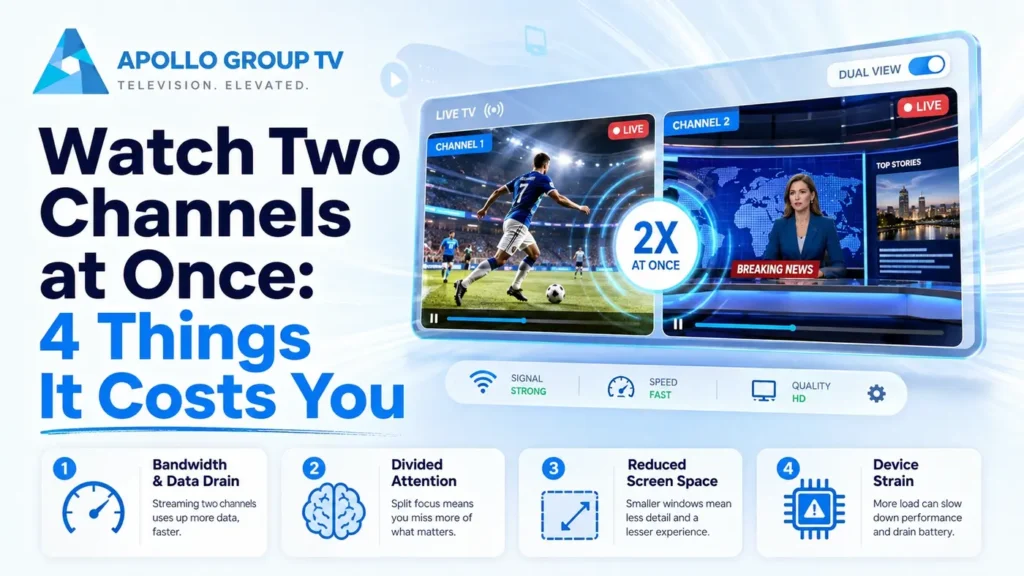
Displays two or more channels on one screen. Genuinely useful for following two live events at once, and considerably more demanding than it looks: each pane is a separate stream, so two panes consume roughly twice the bandwidth and twice the decoding effort. Our guide to how to watch two channels at once covers what your connection and device need to handle it.
Casting to a larger screen
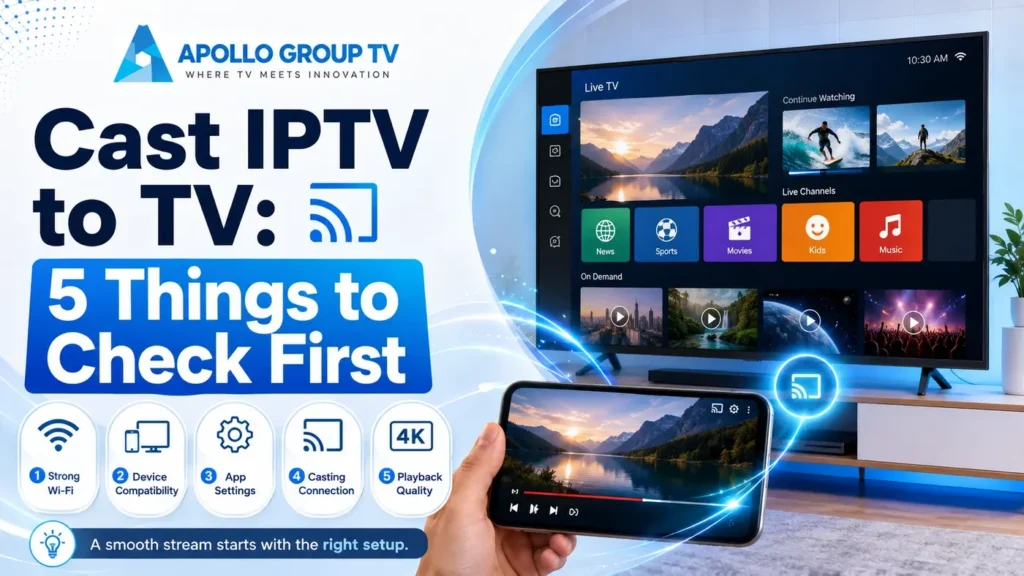
Sends playback from a phone or tablet to a television. Convenient, and usually a step down in quality compared with running the app on the television itself, because the stream makes an extra hop. Our guide on how to cast IPTV to TV covers when it is worth using and when installing the app directly is better.
When a Feature Isn't There
Sooner or later you will look for one of these and find nothing, which is where most guides on how to use an IPTV app quietly stop being useful. There are three explanations, and telling them apart takes about a minute.
Players differ enormously in what they expose. Basic ones offer favorites and little else; advanced ones add recording, multiview and detailed playback controls.
How to tell: the option appears nowhere in any settings menu.
Catch-up and guide data come from the provider. The player can only display what it receives, so an empty archive is not a settings problem.
How to tell: the option exists but is empty or grayed out.
Several features ship disabled, including recording on some players and multiview on most. Others sit behind a paid tier within the app itself.
How to tell: the option is present with a toggle, a prompt or an upgrade notice.
The distinction matters because only the first is worth acting on. If your player lacks something you want, another player will have it, and the underlying subscription is unaffected by which one you use.
If none of the nine features behave as described and playback itself is the problem rather than the interface, the cause is almost certainly the connection rather than the app. apollo tv plans are set out in full if you are still deciding what to run, and TechTarget's technical overview of how IPTV delivery works is worth reading if you want the mechanics behind what the app is displaying.
Frequently Asked Questions
Do I have to learn how to use an IPTV app to watch television?
No. Everything works out of the box, and plenty of people never change a setting. The nine features above are about making daily use faster rather than making it possible, which is why the first ten minutes are worth more than the rest combined.
Will my settings carry over to another device?
Usually not. Favorites, layout and playback preferences are stored locally by most players, so a second television starts from scratch. Some offer a backup file or account sync, which is worth checking before you set everything up twice.
Can I use a different app with the same subscription?
Generally yes, since the subscription and the player are separate things. If your current player lacks a feature you want, switching is the straightforward answer and nothing about your account changes.
Why does the app feel slower than my other streaming services?
Live channels behave differently from on-demand libraries. Each channel change opens a fresh connection rather than continuing an existing one, so a short delay is normal. If it stretches to several seconds, that is worth investigating separately.