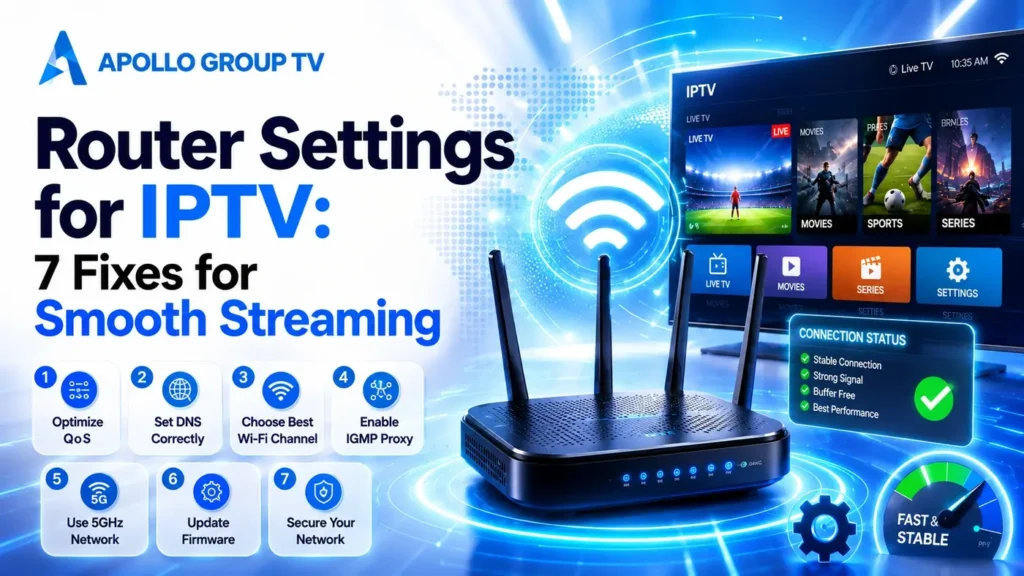
Most lists of router settings for IPTV read like an inventory: fifteen options, no order, no indication of which one actually matters. Follow one of those and you will change twelve things, fix nothing, and have no idea what to undo.
This one is sorted by effect instead. Four settings that genuinely change live playback, two more for busy households, and four that people change constantly and should not.
Find Your Router's Admin Page First
Everything below happens inside the router's own interface, reached through a browser on a device connected to the same network.
Type 192.168.0.1 or 192.168.1.1 into the address bar. One of the two works on the large majority of home routers. If neither loads, look at the label on the underside of the unit: the correct address, the default username and the default password are almost always printed there, sometimes as a web address rather than a number.
If your provider supplied the router and the label password has never been changed, change it now. It takes thirty seconds and it is the single most useful security action available to you, because default credentials for every major model are published openly.
Write down every value before you change it. Photograph the screen if that is quicker. Half of all router troubleshooting goes wrong because someone changed four things, made the situation worse, and could not return to the starting point.
The Four Settings That Change Playback
Menu names differ between manufacturers, so each of these router settings for IPTV gives the general location rather than one brand's wording. Work through them in this order, testing after each.
1. Update the firmware
Advanced → System → Firmware UpdateWhy it comes first: an update can reset your other changes, so doing it last wastes the work.
Routers running three-year-old firmware frequently carry wireless stability bugs that were fixed long ago. Manufacturers rarely push these automatically on older models. Check the version, compare it against the support page for your exact model number, and apply the update before touching anything else.
2. Split the two bands and turn off band steering
Wireless → Advanced → Smart Connect / Band SteeringWhy it matters: a television left to the router's judgement often sits on the slower band all evening.
Many routers broadcast 2.4 GHz and 5 GHz under one network name and decide which band each device receives. That guess is frequently wrong for a television, which never moves and should simply stay on 5 GHz permanently. Disable the combined mode, give the bands two distinct names, and connect the streaming device to the 5 GHz one by hand.
3. Set the wireless channel and width manually
Wireless → Channel / Channel WidthWhy it matters: automatic channel selection usually runs at boot and never reconsiders.
Your router picked its channel when it last restarted, possibly months ago, and your neighbors have changed theirs since. On 2.4 GHz only channels 1, 6 and 11 avoid overlapping each other, so choose whichever of those three is least used nearby. On 5 GHz there is far more room; pick a channel away from whatever else you can see, and set the width to 80 MHz rather than leaving it automatic.
To see what your neighbors are using rather than guessing, install a wireless analyzer app on a phone and stand next to the television. It lists every network in range with its channel and signal strength, which turns this from trial and error into a two-minute decision. Repeat the reading in the evening, when the picture is usually very different from the middle of the day.
4. Reserve a fixed IP, then give it priority
Advanced → DHCP → Address Reservation, then Advanced → QoSWhy the order matters: a QoS rule attached to an address that changes stops working silently.
This is two settings that only work as a pair, and the reason QoS so often appears to do nothing. Find the streaming device in the connected-clients list, note its MAC address, and reserve a permanent IP for it. Then open QoS, enable it, enter the download and upload figures your plan actually delivers, and set that device to the highest priority tier.
QoS creates no bandwidth. What it does is decide who loses first when the connection is saturated, which is exactly what you want when someone starts a large download mid-game. TP-Link publishes a step-by-step QoS walkthrough that shows the layout clearly enough to follow on other brands.
Two More for a Crowded Network
These two make little difference in a quiet household and a considerable one where twenty devices share the same air.
5. Move smart-home devices onto 2.4 GHz
Wireless → 2.4 GHz network settingsWhy it helps: every device on a band consumes airtime, whether it is transmitting much or not.
Plugs, bulbs, sensors and doorbells send tiny amounts of data but still take their turn on the channel. Most of them only support 2.4 GHz anyway, so connecting them there deliberately keeps the 5 GHz band clear for the devices that need throughput. Having split the bands in step two, this is now straightforward to enforce.
6. Change the DNS servers
Network → WAN → DNS SettingsSymptom it fixes: channels that play fine but take several seconds to open.
Name resolution happens before any video arrives, so a slow resolver delays every channel change while leaving playback itself untouched. If that pattern matches what you see, our guide to DNS settings for IPTV covers which servers to use and how to apply them at router level rather than device by device.
Four Settings to Leave Alone
Forum threads recommend all four of these regularly. Each one either does nothing for streaming or actively makes it worse.
WMM / Wi-Fi Multimedia
It is already on, and it should stay on. WMM is what allows video and audio traffic to be prioritized over bulk transfers at the wireless level. Turning it off is occasionally suggested as a fix for connection problems and reliably makes streaming worse.
Anything labeled turbo, boost or accelerator
These vendor-branded modes usually widen channels or raise transmit power in ways that increase interference in dense housing. Where they help at all, it is in isolated houses with no neighbouring networks, which is the situation least likely to need help.
WPS
The one-button pairing feature has known weaknesses and does nothing for performance. Leave it disabled and connect devices with the password.
A factory reset as the first move
Resetting wipes your provider's connection settings along with everything else, and on some connection types they are not trivial to restore. Keep it as a last resort after the changes above have been tried and reversed, not as an opening step.
Nothing Changed — What That Tells You
If you have worked through all six useful router settings for IPTV and playback is identical, that is genuinely useful information rather than a failure. It rules out the router, which leaves three places the problem can be.
Where to look next
If the connection is wireless, the physical link is the most likely remaining cause: distance, walls or a saturated band that no setting can overcome. If it is already wired and the fault persists, the bottleneck is either the incoming line itself or the device doing the playback.
The quickest way to separate those is to test with a cable, even temporarily laid across the floor. Our comparison of a wired connection against wireless sets out how to run that test and how to read the gap between the two results.
If the wired test is also poor, the problem sits upstream of your equipment entirely, and the wider sequence in our guide to IPTV home network setup covers what to measure and in what order. Discover more about what each plan includes if you are still deciding which service to run on the network you have just tuned.
Frequently Asked Questions
Which router settings for IPTV should I change first?
Firmware, then the band split. Those two solve more problems than the rest combined and they cost nothing. QoS is powerful but only once the device has a reserved IP address, so treat that pair as a single job rather than two.
Does QoS slow down my other devices?
Only when the connection is saturated, which is the point. With capacity to spare every device runs normally. Under pressure, the lower-priority traffic gives way first, so a large download slows instead of the live stream freezing.
Should I use my provider's router or buy my own?
Provider units are usually adequate but often ship with limited QoS controls and slow firmware updates. If the settings described here are missing from the interface entirely, that is the strongest argument for replacing it. Check first whether yours can run in modem-only mode.
Do I need to restart the router after each change?
Most settings apply immediately, though wireless changes will briefly disconnect every device. Test after each individual change rather than making several at once, otherwise you will not know which one helped.