Every guide tells you to plug in a cable, then stops there. That advice is right, and it is also useless if your television sits three rooms from the router with a staircase in between.
So this is the honest version of Ethernet vs WiFi for IPTV: where the gap between them genuinely shows up on live television, when wireless is perfectly adequate, and what to do when a cable is not an option.
The Comparison at a Glance
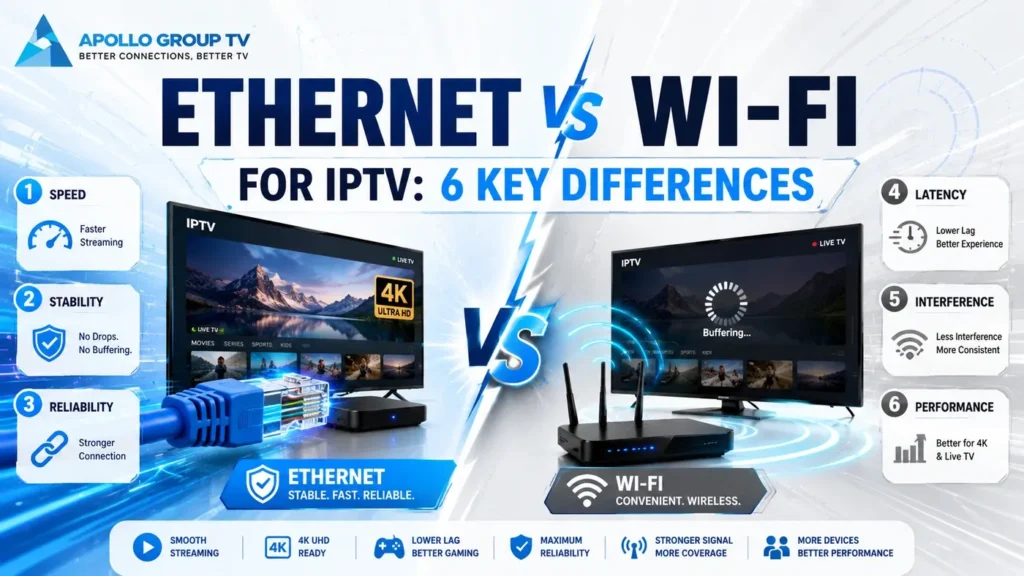
Live television stresses a connection differently from anything else in the house. A movie you stream on demand buffers minutes ahead, so a two-second wireless dropout passes unnoticed. A live channel holds only a few seconds in reserve, which is why the same dropout freezes the picture. Six differences matter as a result.
| What changes | Ethernet | WiFi |
|---|---|---|
| Stability under load | Holds the same throughput whether one device or ten are active | Throughput drops as more devices compete for airtime |
| Channel switching | Consistently low latency, guide and zapping feel immediate | Latency varies moment to moment, switching feels sluggish |
| Interference | None. The cable is isolated from everything around it | Shares airspace with neighbors, microwaves, baby monitors |
| Distance | No practical loss across a normal house | Signal weakens through every wall, floor and doorway |
| Several streams at once | Each wired device gets its own dedicated path | All wireless devices take turns on the same channel |
| Setup effort | Physical work: routing a cable, sometimes an adapter | Nothing to install, works the moment you enter the password |
Only that last row favors wireless, and for a television that never moves, it is the row that matters least.
In practiceWhere the Difference Actually Shows Up
The comparison above is abstract until you match it to something you have experienced. Three situations account for most of the complaints.
The channel freezes during the game, never during the news
Fast motion raises the bitrate of a live stream considerably. A wireless link that copes fine with a studio show can sit right at its limit during sports, and every small interruption then becomes visible. On a cable the same channel plays without incident, because the available capacity does not fluctuate.
Channel switching takes four seconds
Zapping is a latency problem, not a bandwidth one. Each channel change means a fresh request and a fresh connection, and wireless adds a variable delay to every one of them. This is the difference people notice most in daily use, and the one a speed test never reveals.
Everything is fine until someone else switches on a TV
Wireless devices take turns transmitting. Two televisions on the same band do not each get half the speed; they get less than half, because the coordination itself costs airtime. Wire one of them and the other frequently stops complaining, even though nothing changed on the second set.
If none of these match your symptoms, the cause may sit elsewhere entirely. Our guide to home network setup for IPTV works through the checks in order so you do not spend an evening solving the wrong problem.
Be honest about your caseWhen WiFi Is Genuinely Enough
Wireless gets a worse reputation than it deserves. In the right conditions it carries live television without any issue at all, and running a cable through your hallway would be effort spent for nothing. The question of Ethernet vs WiFi for IPTV has a wireless answer when all four of these hold.
- The device is on the 5 GHz band. Not 2.4 GHz, which is crowded, slower and shared with almost every smart device in the neighbourhood. If your bands share one network name, the television may be sitting on the wrong one without you knowing.
- The router is in the same room, or one wall away. Each additional wall costs signal, and a floor costs more than a wall.
- One television streams at a time. A single stream leaves plenty of airtime spare; three do not.
- You watch in 1080p rather than 4K. Full HD asks for roughly a third of what 4K does, which puts a large margin between you and the ceiling.
Miss one of those and wireless can still work. Miss two, and you will spend more time troubleshooting than a cable would have taken to install.
Check which band you are actually on. Open the network settings on the television and look at the connected network name and frequency. Devices routinely stay attached to 2.4 GHz long after a better option becomes available, because they connected there first.
You Can't Run a Cable — 4 Options Ranked
Rented apartments, plastered walls and awkward layouts all rule out a straight cable run. These four alternatives are ordered by how close they get to a wired result.
MoCA adapters
These send network traffic over the coaxial cabling already installed for television. You need a coax outlet near the router and another near the set, plus an adapter at each end.
Where the sockets exist, performance sits close to a genuine Ethernet run and stays consistent, because coax is shielded and unaffected by what else is happening in the house.
A powered Ethernet adapter for streaming sticks
Small streaming sticks have no network port, which people assume means wireless is compulsory. Most manufacturers sell a replacement power supply with an Ethernet socket built in.
If a cable can reach the television at all, this converts the stick to a fully wired device for very little money. It is the single most overlooked fix in this whole comparison.
Powerline adapters
These carry data through the mains wiring between two plug sockets. Results depend entirely on your electrical circuits: same circuit and modern wiring gives a strong result, while older wiring or a run across two circuits can be worse than the wireless you already have.
Buy somewhere with a return policy and test before you commit. Plug them directly into wall sockets, never into an extension lead.
Optimised wireless
If none of the above is possible, get as much as you can from the wireless you have: split the bands so you can pin the television to 5 GHz, move the router higher and away from metal, and set a fixed channel rather than leaving it automatic.
Our walkthrough of router settings covers where each of those sits in the interface.
Test Which One Your House Needs
Rather than guessing, measure the gap in your own home. If it turns out to be small, you can stop reading and leave everything as it is.
The wired versus wireless comparison
- Run a speed test on the device over its normal wireless connection, three times, and note the middle result along with the jitter figure.
- Borrow a long cable and run it temporarily across the floor from router to device. Nothing permanent, just for the test.
- Repeat the same three tests wired, in the same session, and compare.
- Do it again at 9pm on a weekday, when your neighbors' networks are busiest and wireless is under the most pressure.
Read the result this way. A wireless figure within roughly 20% of the wired one, with jitter that stays low, means your wireless is fine and a permanent cable would change little. A large gap, or jitter that jumps around between runs, tells you the wireless link is the bottleneck and the cable is worth the effort.
One more variable is worth eliminating before you conclude anything: the hardware itself. Built-in television apps and external streaming boxes differ in both their network chips and their playback software, and our comparison of whether to use a streaming device or a smart TV app covers what changes between them. HowToGeek also has a useful general breakdown of wired versus wireless performance if you want the underlying networking detail.
Whichever way your test lands, the decision only needs making once. Fix the connection properly and it stops being something you think about, which is rather the point. If you are still choosing a service to run on it, apollo tv group sets out what each plan includes.
Frequently Asked Questions
Does Ethernet vs WiFi for IPTV matter if my internet is already fast?
Yes, because the two measure different things. A fast plan sets the ceiling arriving at your house; the connection type decides how much of it survives the journey to the television and how steady it stays. A 500 Mbps plan delivered over weak wireless can still stutter.
What cable should I buy?
Cat 6 is the sensible default and costs very little more than Cat 5e. Both carry far more than any stream needs, so buy on length and build quality rather than category. Flat-profile cables run neatly along baseboards if appearance is the obstacle.
My TV has no Ethernet port. What now?
Two routes. Use a streaming box or stick with a powered Ethernet adapter and let it handle playback, or connect a MoCA or powerline adapter to whatever device does have a port. Either way the television itself does not need one.
Will WiFi 6 close the gap?
It narrows it, particularly in homes with many devices, because it handles simultaneous clients far better than earlier generations. It does not remove interference, walls or distance, so a cable still wins where one is practical.